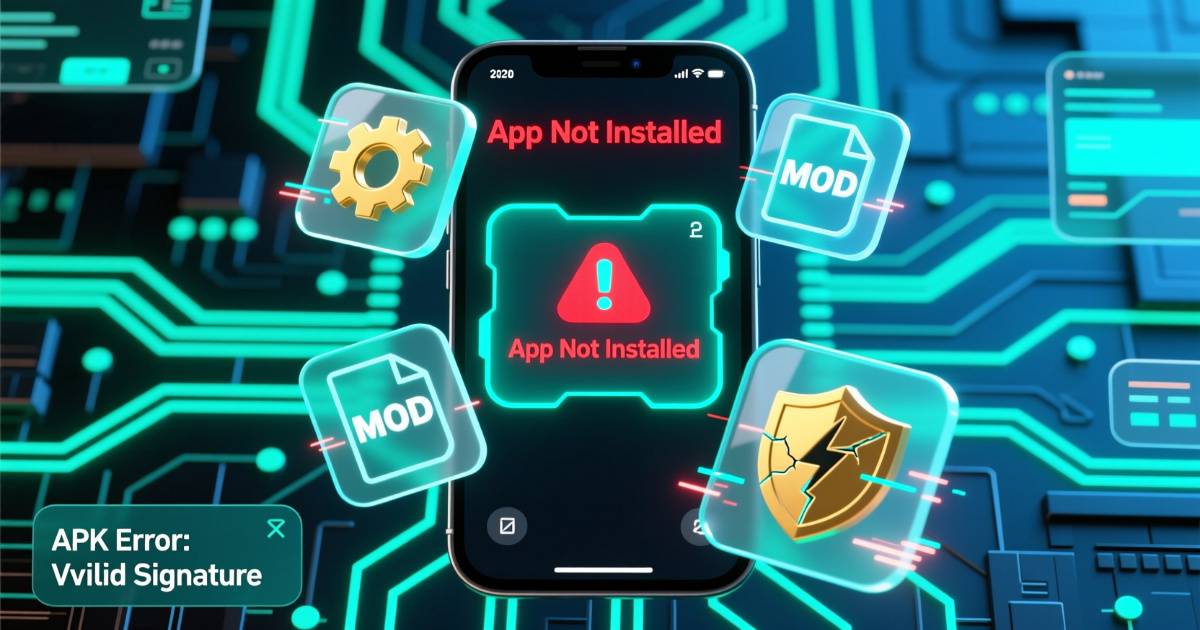
Installing MOD APKs on Android has become increasingly tricky — especially in 2026 with Android 16 tightening security, signature checks, and file-scan layers. If you’re seeing errors like:
- “App Not Installed”
- “Package Conflicts With Existing Application”
- “Installation Failed”
- “Parse Error”
- “App Blocked by Play Protect”
…you’re not alone. In fact, this issue affects millions of Android users every month.
This guide explains every reason why MOD APKs fail to install in 2026 and provides tested solutions that work on Android 12, 13, 14, 15, and 16.
1. The Most Common Reasons MOD APKs Don’t Install in 2026
Android security keeps evolving, and these are the reasons MOD APKs fail now:
1. Outdated MOD APK (Not Compatible with Android 16)
Old APKs built for Android 10–12 cannot pass Android 16’s signature or compatibility checks.
2. Signature Mismatch Error
If the original app is installed, Android blocks the MOD because the signatures don’t match.
3. Missing Split Packages (APKS/XAPK)
Many MODs use split files. If even one split is missing → installation fails.
4. Wrong OBB Placement
Incorrectly placing OBB files breaks app installation.
5. Corrupted or incomplete download
Bad downloads or broken links cause parsing errors.
6. Play Protect blocking modified code
Google Play Protect automatically blocks unsafe, unsigned, or outdated mods.
7. Insufficient storage or storage bugs
Android sometimes fails even if enough storage “appears” available.
8. Unsupported CPU architecture (ARM/ARM64/86)
Wrong CPU type = app won’t run.
9. Trying to install over newer app version
If the Play Store version is newer, the older MOD version won’t install.
10. Wrong file type (APKS installed as APK)
Many users try installing APKS directly — this causes instant failure.
2. How to Fix MOD APK Installation Errors (2026 Solutions)
Below are the most effective fixes that work on all Android versions.
Fix 1: Remove the Original App First
Go to:
Settings → Apps → Uninstall app
Android will not allow installing a MOD over the official app due to signature differences.
Fix 2: Re-enable “Install Unknown Apps” (Android 16 resets this!)
Many users forget this step after updating Android.
Go to:
Settings → Apps → Special Access → Install Unknown Apps
Enable for:
✔ Chrome
✔ File Manager
✔ Browser
✔ APK Installer apps
Fix 3: Install Split APKs Correctly (APKS/XAPK)
Android 16 requires exact split package installation.
Use these tools:
- SAI (Split APKs Installer) for APKS
- XAPK Installer for XAPK
- ZArchiver for OBB-only mods
Do NOT try installing APKS as normal APKs — it will fail 100%.
Fix 4: Always Clear Previous App Data Before Reinstalling
This resolves signature and cache conflicts.
Steps:
Settings → Apps → Select App → Storage → Clear Data & Cache
Fix 5: Disable Play Protect (Temporarily)
Play Protect often blocks MOD APKs automatically.
Go to:
Play Store → Profile → Play Protect → Gear Icon → Turn Off Scan Apps
Only disable while installing. Turn back ON afterward.
Fix 6: Check CPU Architecture Compatibility
Some apps fail because of wrong CPU type.
Use CPU-Z or DevCheck to check if your device is:
✔ ARM
✔ ARM64
✔ x86
Download the version that matches.
Fix 7: Free Up Storage Space
Even 2–4 GB space might not be enough for:
- Unpacking APK
- Installing OBB
- Temporary installation files
Try freeing 5–7 GB for large games.
Fix 8: Place OBB Files in the Correct Folder
Correct path:
Android → obb → com.app.name → file.obb
Wrong placement = app won’t open.
Fix 9: Download the Latest MOD Version (2026 Builds)
Most older 2023–2025 MODs don’t work with Android 15/16.
Use only 2026-updated mods.
Fix 10: Use Trusted MOD Websites
The wrong website can give you broken or incomplete files.
Choose sites offering:
✔ updated files
✔ multiple mirrors
✔ split versions
✔ file size consistency
Fix 11: Rename the OBB Folder if App Keeps Crashing
Sometimes the game loads corrupt OBB files.
Try:
- Rename /obb/com.app.name to something else
- Open app → it requests download
- Cancel it
- Restore OBB folder
This forces the app to re-index the OBB.
Fix 12: Reboot Phone After Installation
Android 16 sometimes delays app linking.
A reboot finalizes installation.
3. Common Errors & How to Fix Them
Error: “App Not Installed”
✔ Remove original app
✔ Install correct CPU version
Error: “Parse Error”
✔ File corrupted
✔ Wrong download
✔ Install with SAI
Error: “Package Conflicts With Existing App”
✔ Clear cache
✔ Remove old folders
Error: OBB Not Detected
✔ Wrong folder
✔ Wrong folder name
✔ Missing file
4. Tips to Avoid MOD Installation Problems (2026 Edition)
✔ Always download MODs updated in 2026
✔ Prefer APKS/XAPK over older APK formats
✔ Never mix OBB from different versions
✔ Avoid installing MODs over Play Store updates
✔ Keep SAI or XAPK Installer installed permanently
✔ Regularly clear temp files and cache
These habits ensure smooth MOD usage all year.
5. FAQs (2026)
Q1: Do MOD APKs work on Android 16?
Yes — but they must be updated or properly signed.
Q2: Why doesn’t SAI install my APKS?
You may be missing required split packages.
Q3: Is disabling Play Protect safe?
Yes, if you download from trusted sites.
Q4: Can I install MODs without uninstalling the original app?
No, because signatures never match.
Q5: Do MOD APKs harm the phone?
Only if downloaded from unsafe sources.
Conclusion
MOD installation issues are extremely common in 2026 due to strict Android 16 policies. But with the right tools, correct file formats, and updated MOD versions, you can install almost any mod without problems.
Follow the solutions in this guide, and most installation errors will disappear instantly.